posts/2026-11-07 — less +F
OmaSizer: Zones and Preset Sizes for Omarchy's Floating Windows
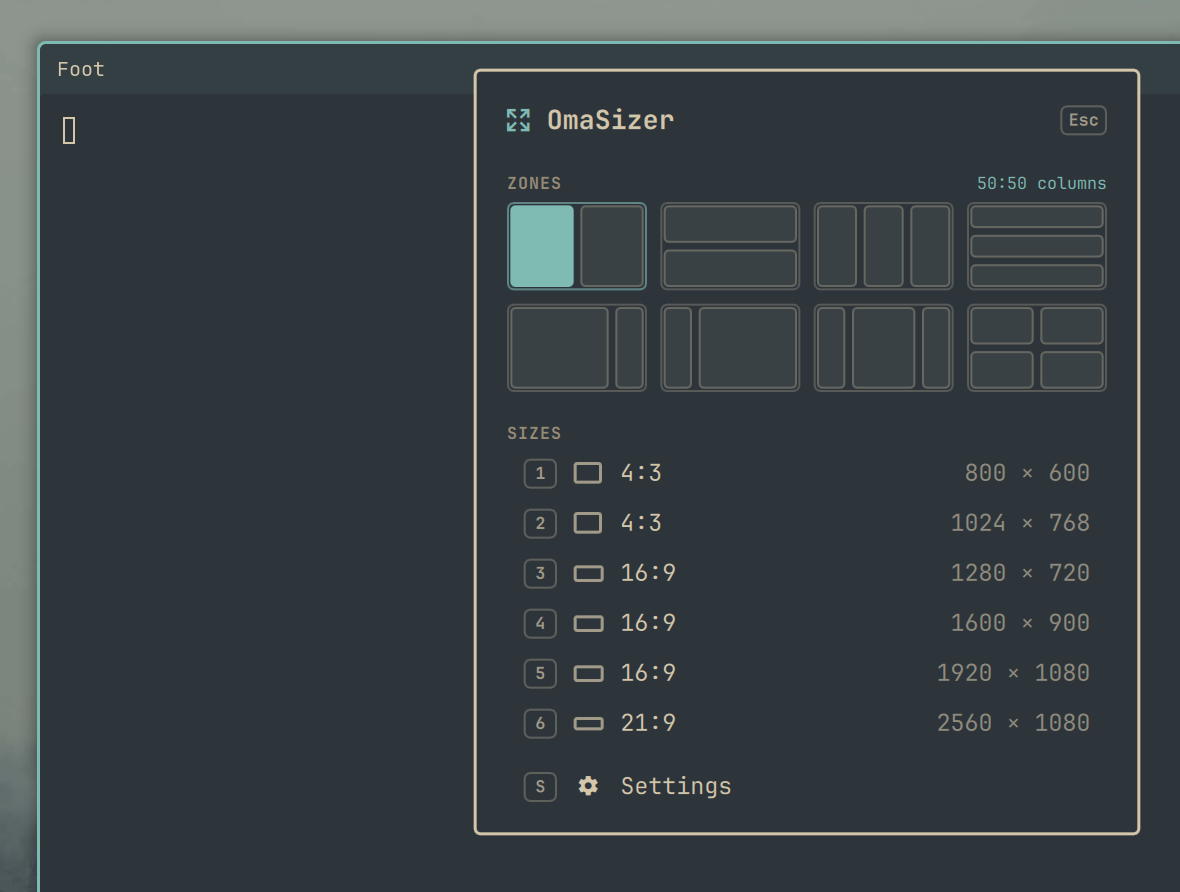
I keep writing the same tool.
First it was Sizer on Windows, which I didn't write but used constantly. Then I moved to KDE Plasma, missed it, and wrote KSizer. Now I'm on Omarchy, and here we are again.
When Omarchy 4.5 came out, it added a new workspace layout called floating. Windows get titlebars, you can drag them anywhere, and they stay where you put them. If you came from KDE or Windows, it feels like home in a way tiling and scrolling never quite did for me.
It didn't take long to notice what was missing, though. A floating window on Omarchy can go anywhere, but there's no quick way to tell it where. You can't say "make this exactly 1280 × 720" or "put this on the left half." You drag a border, squint, drag it again, and settle for close enough.
So I wrote OmaSizer, an Omarchy plugin that adds two things: preset sizes, like Sizer and KSizer, and zones, like PowerToys FancyZones. Right-click a window's titlebar, pick one, and the window goes there.
Project Links
Two ideas I've wanted in one place for years
Sizer and FancyZones solve different problems.
Sizer is about exact sizes. I want a browser window at 1920 × 1080 for a screen recording, or a terminal at the same size every time so screenshots for a README line up. Dragging can't give you that.
FancyZones is about places. You draw a layout once (two columns, a big main area with a sidebar, quadrants, whatever), and from then on you drop windows into those slots instead of arranging them by hand.
Floating windows need both, and on Windows that meant running two separate tools. In OmaSizer they share one menu.
How it works
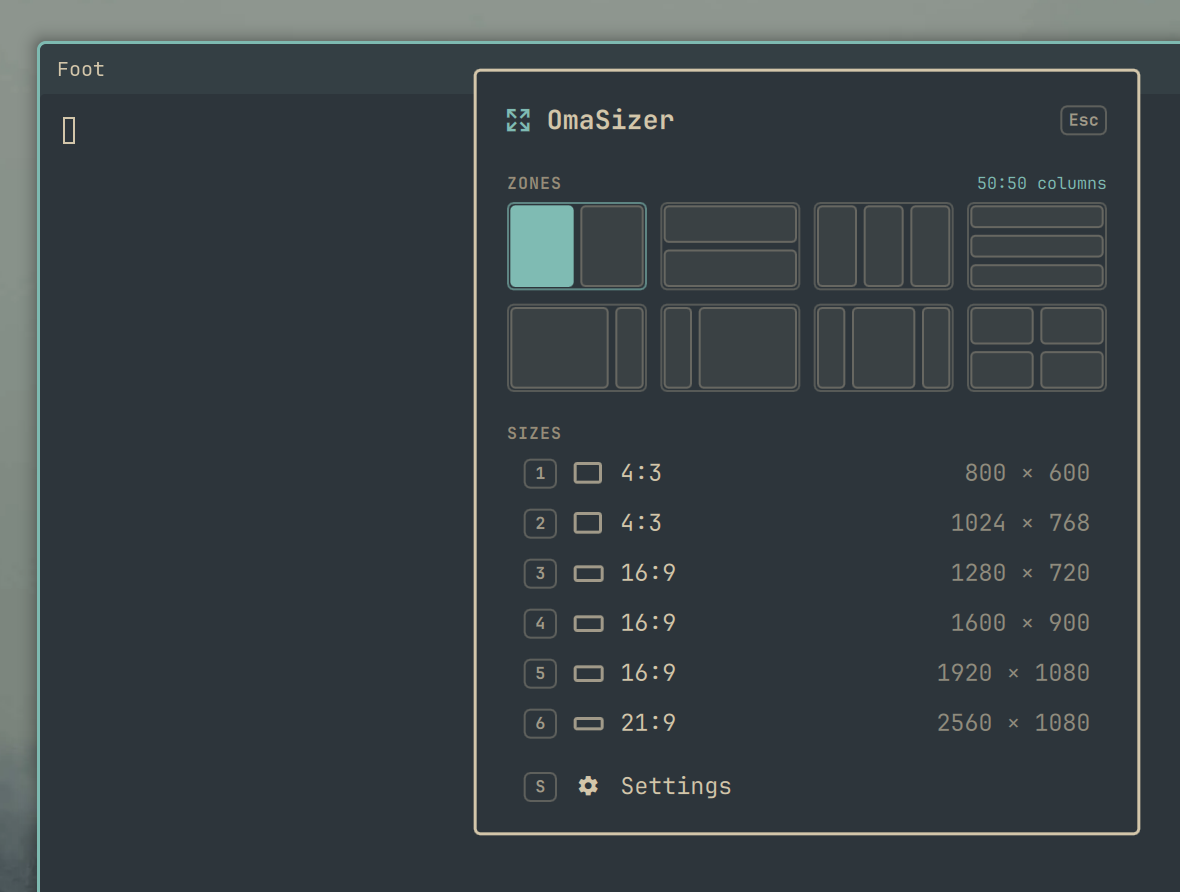
There are three ways to open the menu. Right-click a floating window's titlebar (or one of its buttons), right-click the window's resize border or a corner, or press Super + Alt + Z. The right-clicks act on the window you clicked, and the shortcut acts on whichever window has focus.
The menu opens right where you clicked. Right-clicks inside a window still go to the app, and right-dragging a border still resizes the window like before. The menu only shows up on a click, and since 1.1.1 the right-click that opens it doesn't also leak through to the app.
The top half of the menu is zones. Each layout is drawn as a little screen, and you click the zone you want. Out of the box you get 50:50 and 33:33:33 (each as columns or rows), 75:25, 25:75, 25:50:25, and quadrants. A window that lands in a zone fills it with the same gaps a tiled window would get, titlebar included, so it doesn't look out of place next to the rest of Omarchy.
The bottom half is sizes. The defaults go from 800 × 600 up to 2560 × 1080. Pick one, and OmaSizer takes the window out of fullscreen or maximized if it needs to, resizes it, and centers it. If a preset is bigger than your screen, it gets shrunk to fit instead of hanging off the edge.
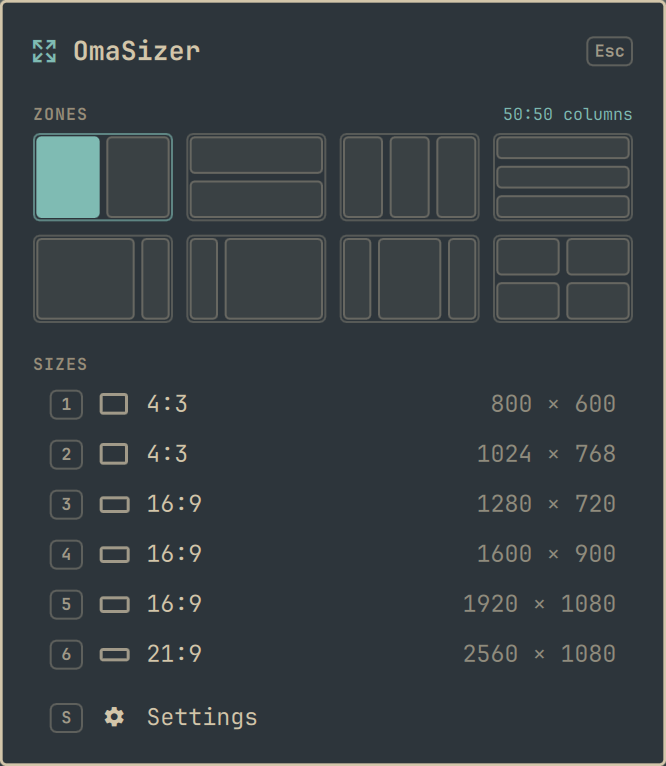
The keyboard works too. 1 to 9 apply a size preset directly. The arrow keys (or H J K L, or Tab) walk through the zones and then the sizes, Enter applies, S opens settings and Esc closes. Super + Alt + Z also works on tiled windows. OmaSizer floats them first, then moves or resizes them.
Drawing your own zones
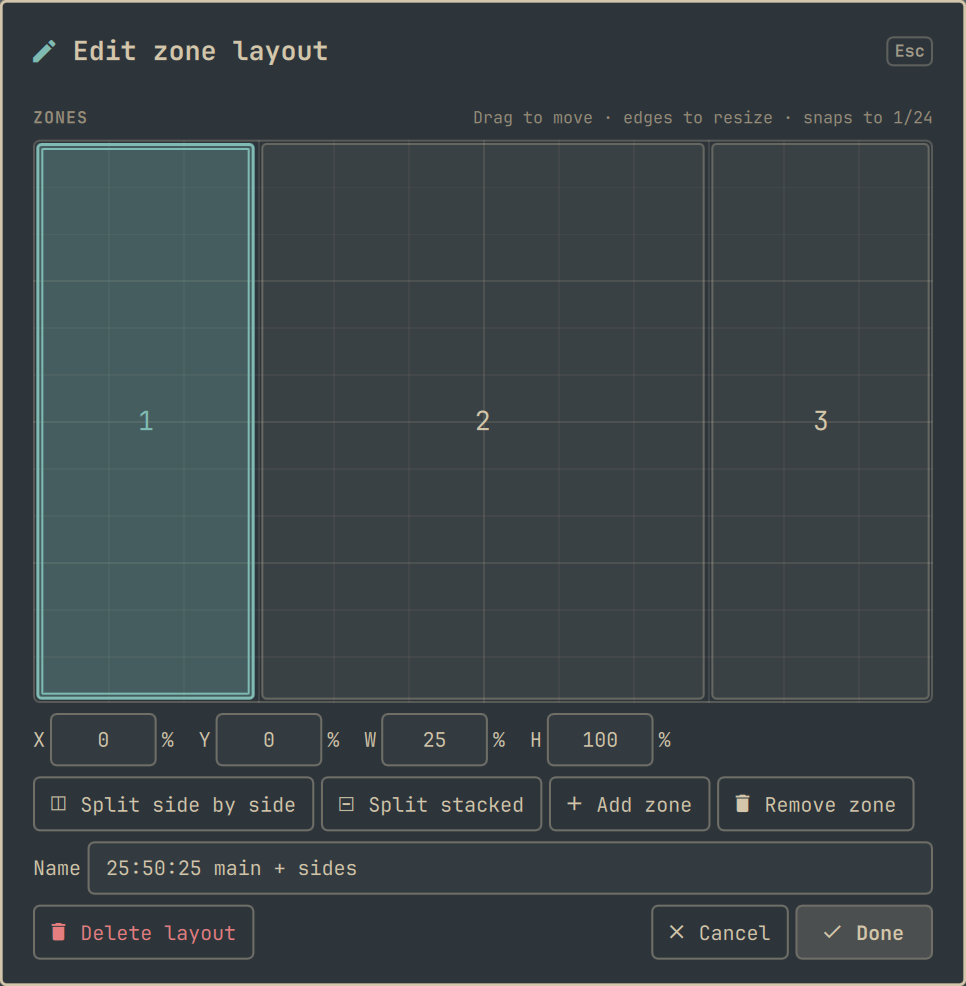
If the built-in layouts don't fit how you work, you can draw your own.
You drag zones to move them and drag their edges or corners to resize them. Edges snap to 24ths of the screen. I picked 24 because it divides cleanly into halves, thirds, quarters, sixths and eighths, so a "third" lines up with a third and doesn't end up a pixel off. There are buttons to split a zone side by side or stacked, add one, or remove one, and if you want something exact you can type the X, Y, width and height as percentages.
It's keyboard-friendly as well. Tab moves between zones, the arrow keys move the focused zone one grid step, Shift + arrows resize it, Delete removes it, and Enter saves.
Settings
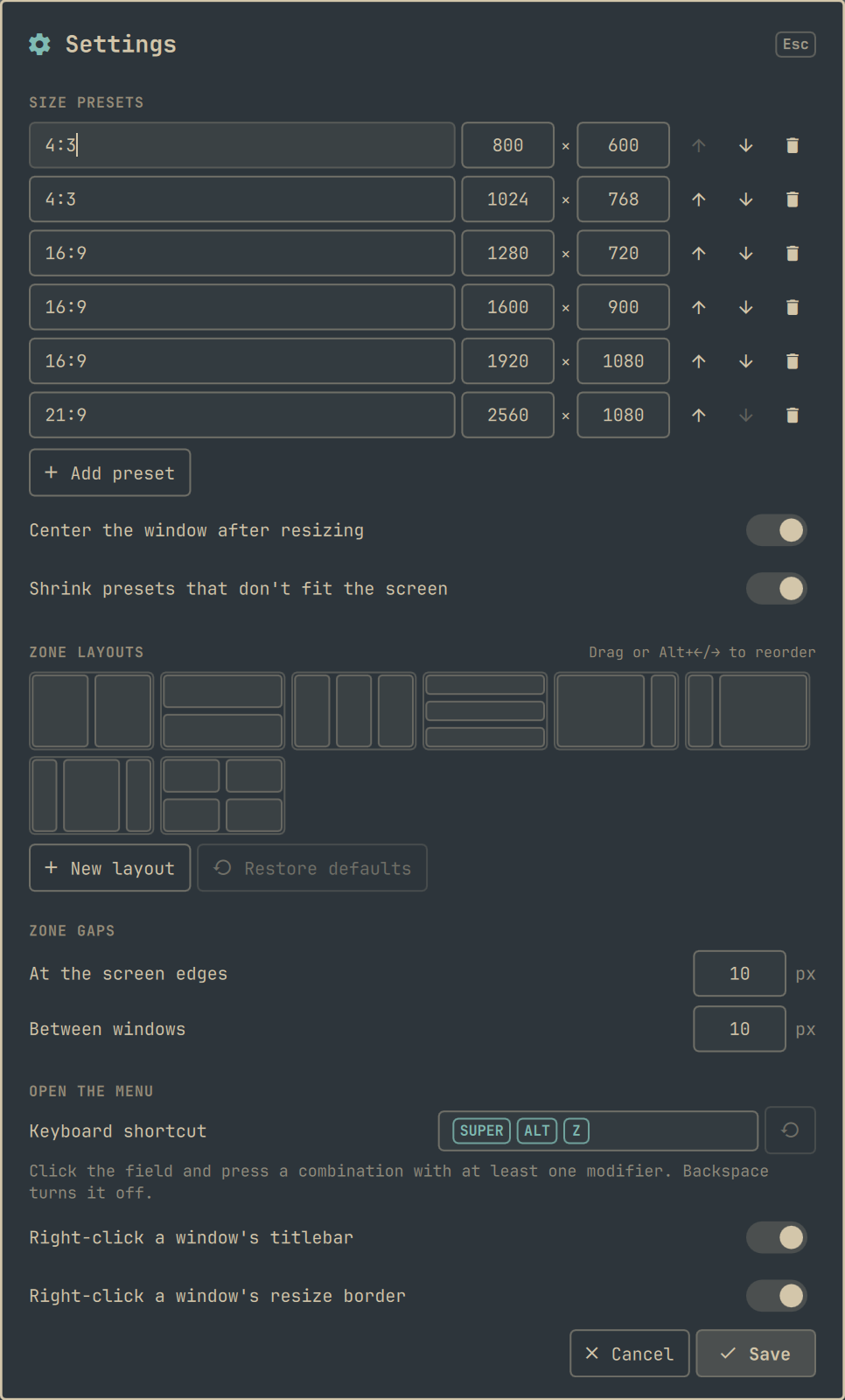
Everything else lives in the settings screen, which you can reach from the bottom of the menu or with S:
- Size presets. Add, edit, reorder and remove them. A new preset starts at the size of the window you right-clicked, which is handy when you've already dragged something to a size you like and just want to save it.
- Zone layouts. Edit them, make new ones, drag to reorder, or restore the defaults.
- Zone gaps. These start from Omarchy's own spacing. Once you save, OmaSizer keeps your values.
- How the menu opens. Record a different shortcut, or switch off the titlebar or border right-click.
I wanted it to feel like part of Omarchy rather than something bolted on. It follows your Omarchy theme and uses Omarchy's own UI components, and every control can be reached from the keyboard.
It doesn't touch your config
This one mattered to me a lot. In 1.0, you had to add a dofile(...) line to your Hyprland bindings yourself. I didn't like asking people to edit their config for a plugin, so 1.1 dropped that.
Now OmaSizer registers its shortcut and right-click hook with Hyprland at runtime: when the shell starts, and again after every Hyprland config reload. It never writes to your config files. If Super + Alt + Z is already bound to something, OmaSizer leaves your binding alone, sends you a notification, and lets you choose a different shortcut in settings. It also tells you what's already using a shortcut before you pick it.
Under the hood it only needs bash, jq and hyprctl, which Omarchy already ships with, and nothing runs with elevated privileges. Settings go into OmaSizer's entry in ~/.config/omarchy/shell.json.
Install
You need Omarchy 4.5 or later. Then:
omarchy plugin add https://github.com/allenguarnes/omasizer.git --enableThat's it. Right-click a floating window's titlebar to try it.
To remove it:
omarchy plugin remove omasizerNothing is left behind in your config. The shortcut and the right-click hook go away at the next Hyprland reload or login. If you installed 1.0 and added that dofile(...) line, you can delete it now. Leaving it there doesn't hurt anything.
Scripting
The resize command works without the menu, so you can bind keys straight to a size or a zone:
-- in ~/.config/hypr/bindings.lua
o.bind("SUPER + CTRL + ALT + 1", "Window 1280×720", "~/.config/omarchy/plugins/omasizer/bin/omasizer 1280 720")
o.bind("SUPER + CTRL + ALT + LEFT", "Window to left half", "~/.config/omarchy/plugins/omasizer/bin/omasizer --zone 0 0 0.5 1")
Sizes are in logical pixels. Zones are fractions (0 to 1) of the monitor's usable area, as x y width height. Both act on the focused window unless you pass a Hyprland window address.
What it can't do yet
- No Shift + drag snapping. This is the FancyZones feature people will probably ask about first, and I wanted it too. Right now it isn't possible: Omarchy's titlebars handle the drag themselves, and Hyprland doesn't report when a drag starts or ends, so there's nothing for OmaSizer to hook into. For now, it's the right-click menu or a shortcut.
- Multiple monitors are untested. Zones and sizes use whichever monitor the window is on, so it should work, but I haven't been able to test it on a multi-monitor setup yet.
If you do run it on more than one monitor, please tell me how it goes.
Closing thoughts
Every time I've changed desktops, the thing I've missed most is being able to say exactly where a window should go and how big it should be. On Windows that took two apps. On KDE I wrote KSizer. On Omarchy it's OmaSizer, and it finally does both.
It's MIT licensed and on the Omarchy Plugin Marketplace. If something lands in the wrong spot, or you've drawn a layout you think should be a default, open an issue on GitHub.